On This Page

Back to Top

Retail Procedures

Opening Procedure


  1. If not already done, take the safe key out of the second drawer (Nerida's desk).
  2. Open the safe and grab the till float bag (labelled 'Retail Express').
  3. Head down the back and turn on both computers.
  4. Count the money to ensure there is $300 float.
  5. Place money in the main till (Till should be open. If not, refer to notes.).
  6. Login to the computer (sendmorecorn).
  7. Open Google Chrome and then “Retail Express - Login” (Located on the bookmarks bar).
  8. Login to Retail Express:
    • Username: _____
    • Password: _____
  9. Find POS in the top navigation bar and click it.
  10. Login to POS:
    • Username: _____
    • Password: _____
    • Outlet: Darwin TF
    • Register: Retail Main POS 1012
  11. Turn on KOH lights.
  12. Start headsets.
  13. Walk through the plane to ensure it is clean and free of clutter.
  14. Ensure ghost holograms are on (If not, inform the supervisor).
  15. Make sure the 'Touch and Learn' screen is on (If not, inform the supervisor).
  16. Check toilets are clean and tidy.
  17. Check the theatre is operational.
  18. Check the 1942 wall is on.

Closing Procedure


  1. Click Cash up and login.
  2. Open the till via the 'Open Register' button.
  3. Count the money and input the amounts into the POS.
  4. Click next and check that there is no variation.
    • Variation - Recount.
    • No Variation - Continue from next step.
  5. Click next to show the EFTPOS page.
  6. Print the pre-settlement on the EFT machine.
    • Black dot/3/3/2.
  7. Type totals into the POS and ensure no variation.
    • Variation - Investigate.
    • No Variation - Continue.
  8. Click next to see breakdown.
  9. Remove cash takings from till.
  10. Print settlement from EFT machine.
    • Black dot/3/1/2.
  11. Gather receipts and staple with settlement.
  12. Write down the money details on the daily banking slip.
  13. Assemble Ziploc money bag:
    • Banking slip - Retail.
    • Cash takings.
    • Stapled receipts.
    • Donation slip (if any).
  14. Write down remaining money in the till ($300 float) as dollar amounts on the ANZ slip.
  15. Place float into calico bag.
  16. Place float and takings into the safe.
  17. When all money is in the safe, lock the red door with the master keys.
  18. When no customers are left in the facility, put the front door on lock with master keys.
  19. Put master keys in the top drawer (Nerida's desk).
  20. Lock the top drawer with the key found in the second drawer.
  21. Shutdown VR headsets.
  22. Ensure theatre is clean from rubbish.
  23. Check toilets are clean and stocked up.
  24. Tidy teddy bear hospital.
  25. Leave and arm the facility:
    • Wave your FOB over the swipe 3 times, ensuring to remove the FOB from the vicinity of the swipe in between waves.
    • Should hear three beeps, then the light on the swipe will turn red.
    • Peek inside to ensure lights are turning off and wave hand in front of the door to make sure it doesn't open.

Doing a Normal Retail Sale


  1. Start a new sale.
  2. Using the barcode scanner, scan the items that the customer would like to purchase
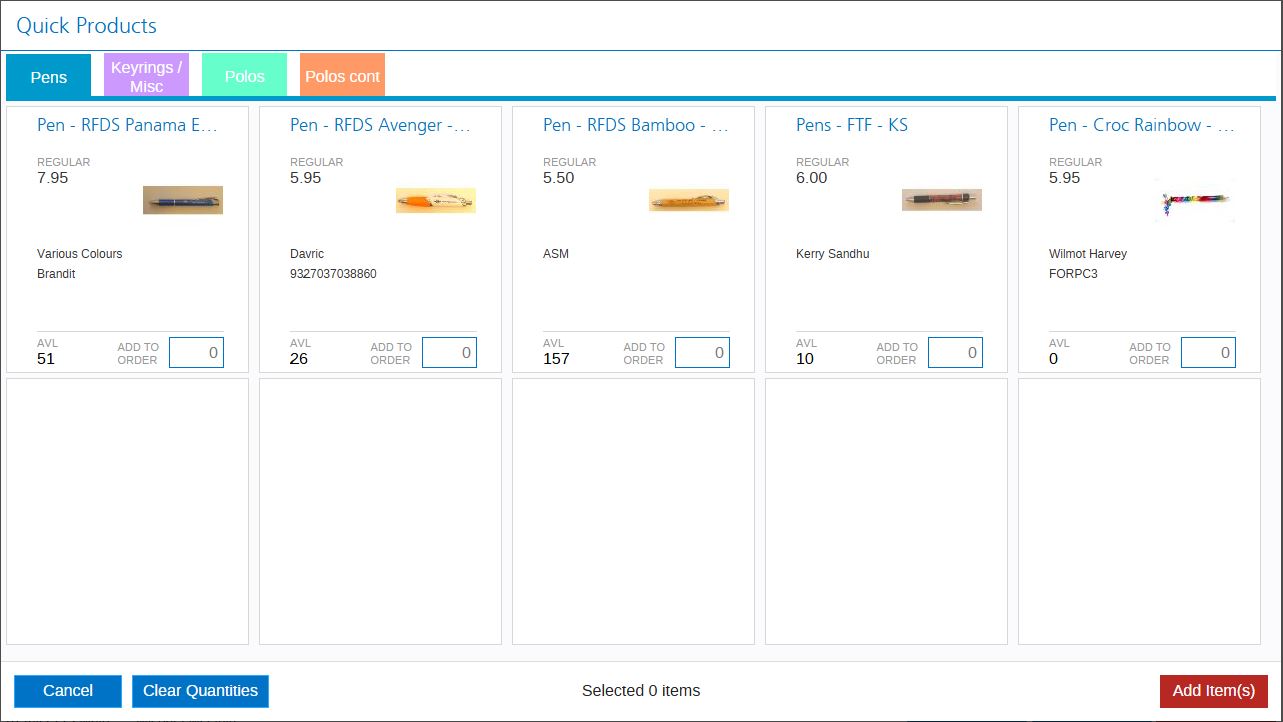
    • Some items do not have barcodes, but are in the 'Quick Products' menu

    • Screenshot of the retail Quick Products menu
    • If a product is not scanning and is also not in the 'Quick Products' menu, you can do a search for the product.
      • At the top of the blue 'Products' tab, there are two fields: 'PLU Scan' and 'Search'
      • Click into the 'Search' field and start typing a description of the item
      • If the item appears, click the item to add it to the sale
      • If the item does not appear, contact the supervisor.
  3. When finished scanning, make sure all the items you scanned show up on the POS
  4. If there are the same number of items in the POS and on the counter, proceed to the green 'Payment' tab.
  5. Select the appropriate payment type by clicking TWICE, the grey arrow next to the payment type. This will add the payment to the sale and the balance will be $0.00.
  6. Finalise the sale and print the receipt

Telephone Orders


  1. Start a new sale.
  2. Scan the products to be bought.
  3. Go to the 'Payments' tab.
  4. On the EFTPOS machine:
    • Black dot.
    • 1 ~ Transaction.
    • 3 ~ MOTO.
    • Enter the amount of the sale.
    • Enter the card number.
    • Enter the card expiry.
    • Enter the CCV number.
    • Enter the 4-digit EFTPOS password:
      • This is located on a label at the top of the EFTPOS machine.
    • Print the receipt.
  5. Finish the payment type in POS.
  6. Go to the 'Invoice' tab.
  7. Print the invoice.

Restocking


Stock can be in 4 places:

Small goods such as magnets, earrings, pens, and lotions are kept in drawers at the retail desk for easy restocking.

Anything bigger or slower moving stock is kept in the storage cupboards or in plastic storage bins in the storeroom.

Taking Donations Through the POS

When customers would like to donate money using their card, or they would like to donate with cash but would like a receipt.
  1. Start a new sale
  2. Select the donation product at the bottom left of the POS' 'Product' tab
  3. Change the quantity to the amount that the customer wants to donate
    • Whole dollars only
  4. Select 'Add'
  5. Proceed to the green 'Payments' tab
  6. Take the customers payment and finalise the sale
  7. Print the receipt